
September 18, 2026 · Michael Lynn
Lozenge: A Teleprompter the Room Can't See
A native macOS teleprompter that follows your voice through the script, and a listener for the conversation after it. Every window is left out of screen capture, and every model call uses your own key or a local model.

Lozenge: A Teleprompter the Room Can't See
Site: lozenge.ai · Platform: macOS 14 Sonoma and later, Apple silicon and Intel · Status: early release, free for now
Lozenge is a native Mac app for the two halves of a call. When you're the one talking,
it's a teleprompter that listens to you and moves through the script as you reach each
part. When someone else is talking, it's a live transcript with research cards and
answers drawn from your own documents. Either way, the window stays out of your screen
share.
Lozenge on macOS
1 / 4
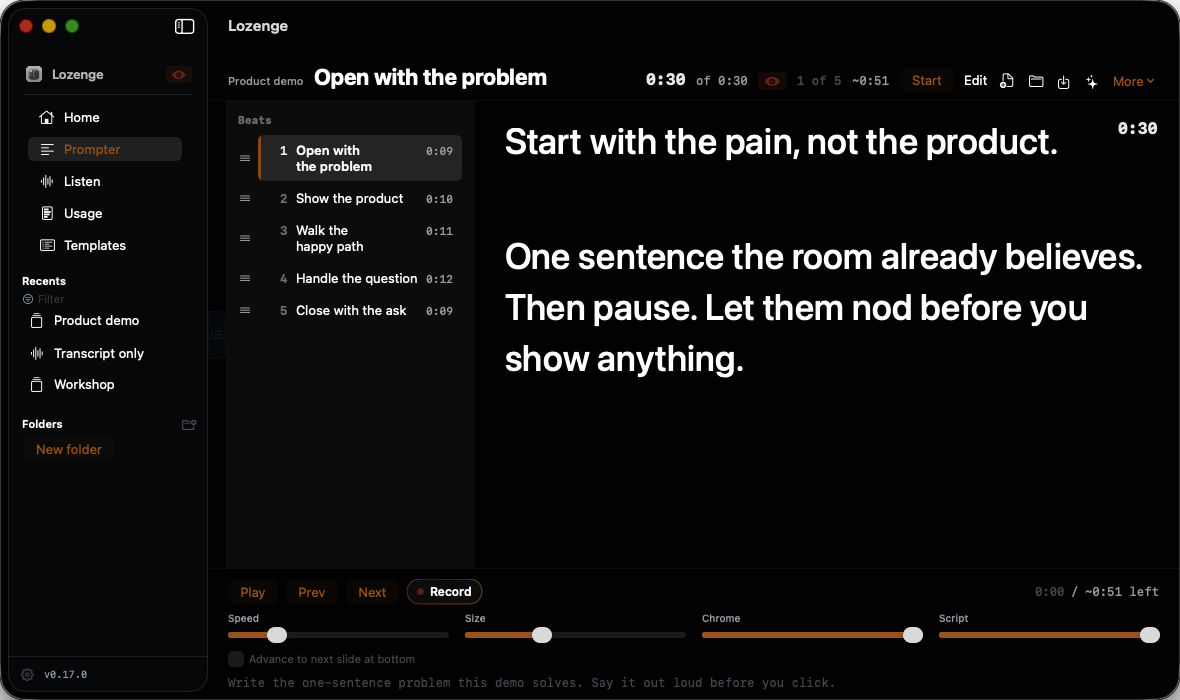
Out of the share
Every window Lozenge opens sets
sharingType to none, so macOS leaves it out of a
full-desktop capture. That covers the main window, the Confidence Monitor, the notch
prompter, the delivery report, the phone remote's QR code, and even the Open and Save
panels. Zoom, Meet and a Slack huddle all capture the desktop the same way, so the
audience sees your editor and your browser and not the script.You can turn capture back on to record the app itself. While it's on, an eye badge
sits in the sidebar and the Prompter header, because that setting only hurts you when
you've forgotten it's on.
The fastest way to trust it is to check it yourself: share your whole screen, join the
call from your phone, and look.
Prompter
The script is broken into beats. Listening Sync matches what you say against the
current beat and moves on when you get to the end of it. It waits for a strong match
and a short dwell before it advances, so a paraphrase doesn't throw it and a pause
doesn't make it run ahead. It isn't a timer or a scroll speed you have to guess. If
you'd rather have a fixed scroll, Speed mode is still there.
Around that:
- Notch prompter. A strip of the current beat hangs from the top of the display, right under the camera. On a Mac without a notch it sits under the menu bar.
- Confidence Monitor. A second window with the current beat, time left on it, the next beat, and a slide preview.
- Google Slides bridge. A Chrome extension moves a Slides deck when you advance a beat, or when you say "next slide."
- Phone remote. Scan a QR code and your phone's browser gets Prev, Play, Next and the current beat. It runs on your own Wi-Fi and only after you start it.
- Delivery report. After a take: pace, where you left the script, skipped beats, filler words, longest pauses.
- Import. Word, PDF, Markdown, PowerPoint or a Google Slides URL. For a deck, a model writes a talk track per slide, and you see the cost estimate before it runs.
Listen
Listen is for when you're mostly the one listening: an interview, a customer call, a
QBR. You get a live transcript with speaker labels, and when a question lands a card
shows up with talking points drawn from a folder of your own Markdown, text and PDF
files. The card names the files it used.
Sixteen templates ship with it, from a recruiting interview to an incident postmortem.
Each one has its own system prompt and research hint, and the interview-shaped ones
write your questions ahead of time from the job description and resume you attach.
When the call ends you get a wrap-up brief, a follow-up email that opens as a draft in
your mail app, and a Slack update that posts only when you press Post. Ask your
sessions answers a question across every conversation you saved, and each claim
names the session and the moment it came from.
Your key, your Mac
There's no account and no Lozenge server. Transcription runs on the Mac by default,
through Apple's on-device speech engine on macOS 26 or Whisper before that, with a
local model for speaker labels. Deepgram is available as an explicit switch with your
own key.
Research, answers and wrap-ups go to whichever provider you configured, or to Ollama
running locally. Keys live in the Keychain. A template field marked Never send can't
reach a model by any route, and a Usage page shows what each model has cost you,
kept on your Mac.
How it's built
SwiftUI with a thin AppKit layer for window policy, key handling, speech and the
Keychain. No Electron. There's an MCP server so an agent can write scripts and
templates in the app's own formats, and a
make check that runs the Swift tests, an
MCP smoke test and a shortcut-collision check before every push.It started as a prompter for live demos, went through three other names, and became
Lozenge when it outgrew demos. The story of how it got there is in
the blog post.