
November 21, 2026 · Michael Lynn
FaceSwap: Blur, Hide or Swap Your Face on Any Mac Camera
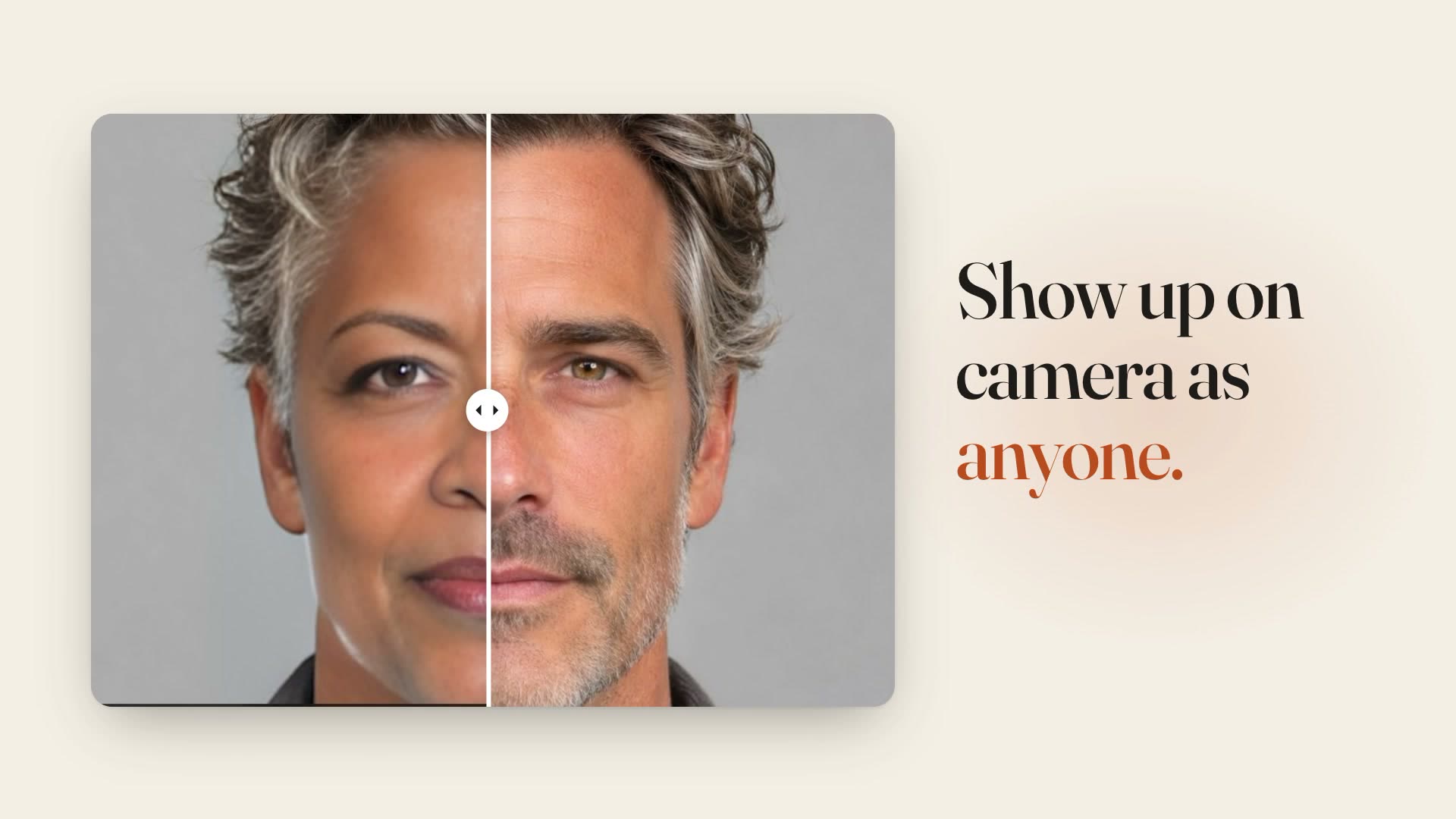
A native Mac app that hides your face live, or swaps in a different one, and hands the result to Zoom, Meet, FaceTime and Teams as an ordinary camera. Every frame is processed on the Mac.
FaceSwap: Blur, Hide or Swap Your Face on Any Mac Camera
Site: macfaceswap.com · Download: latest release on GitHub · Guide: macfaceswap.com/docs.html · Platform: macOS 14 or later on Apple silicon, with iPhone and iPad builds · Status: free, no account
The first commit on this project, on Monday, was called FaceBlur. The idea was small: a camera app that puts a blur over every face it sees, so I could leave the camera on in a call without actually being on camera. It was renamed FaceSwap the same afternoon, which tells you how long the small idea lasted.
What it is now is a Mac app that sits between your webcam and whatever call you're in. It can blur your face, pixelate it, black it out, or swap it for a different face entirely, live, and then it shows up in Zoom, Meet, FaceTime, Teams or a browser as a camera called FaceSwap Camera. Here's 25 seconds of it.
Five styles
There's a dock at the bottom of the window with five buttons. Blur puts a soft oval over each face, Pixelate is the old mosaic, and Blackout is a solid shape. Those three work the moment the app is installed, with no models to download, and Blackout has a global shortcut (⌃⌥⌘B) for the moment someone walks into the kitchen behind you.
Blur, Pixelate, Blackout and Touch Up
1 / 4
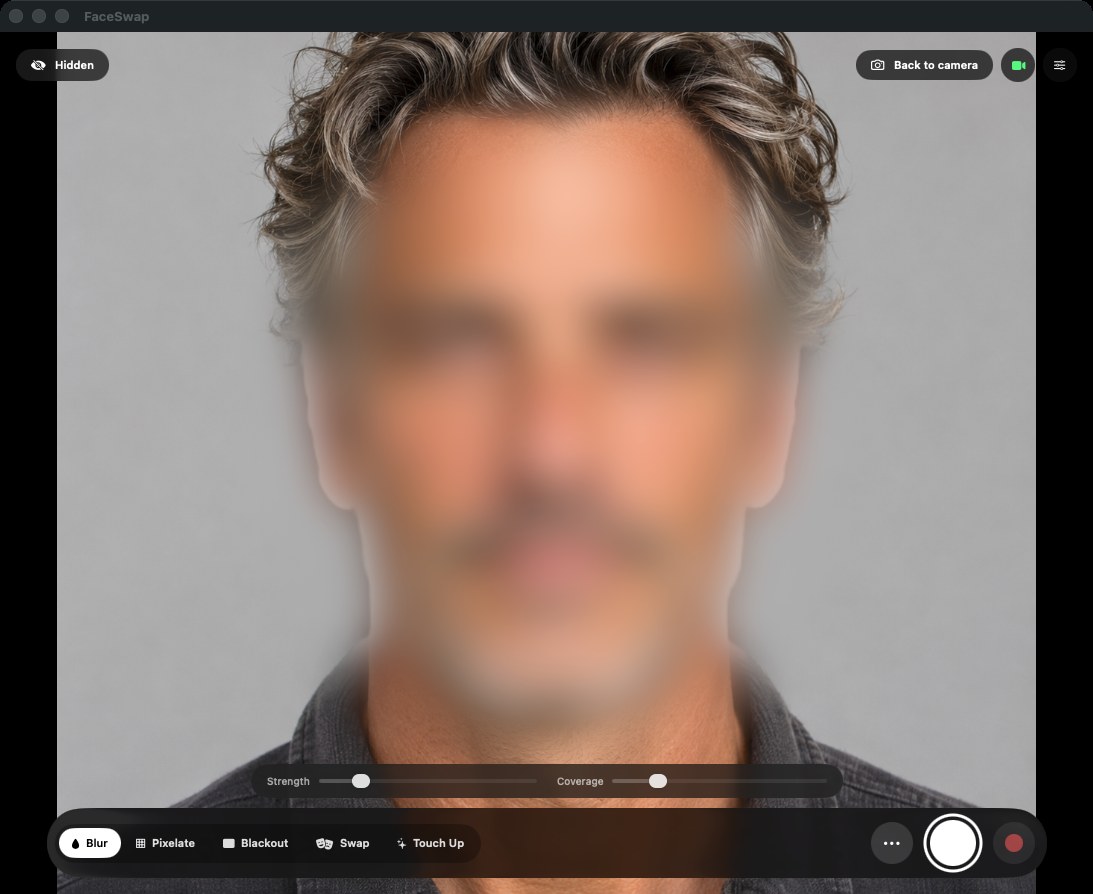
Touch Up is the odd one out because it hides nothing. It's your own face with better light, smoother skin, whiter teeth and brighter eyes.
Swap is the one that took the week.
Swapping a face, every frame
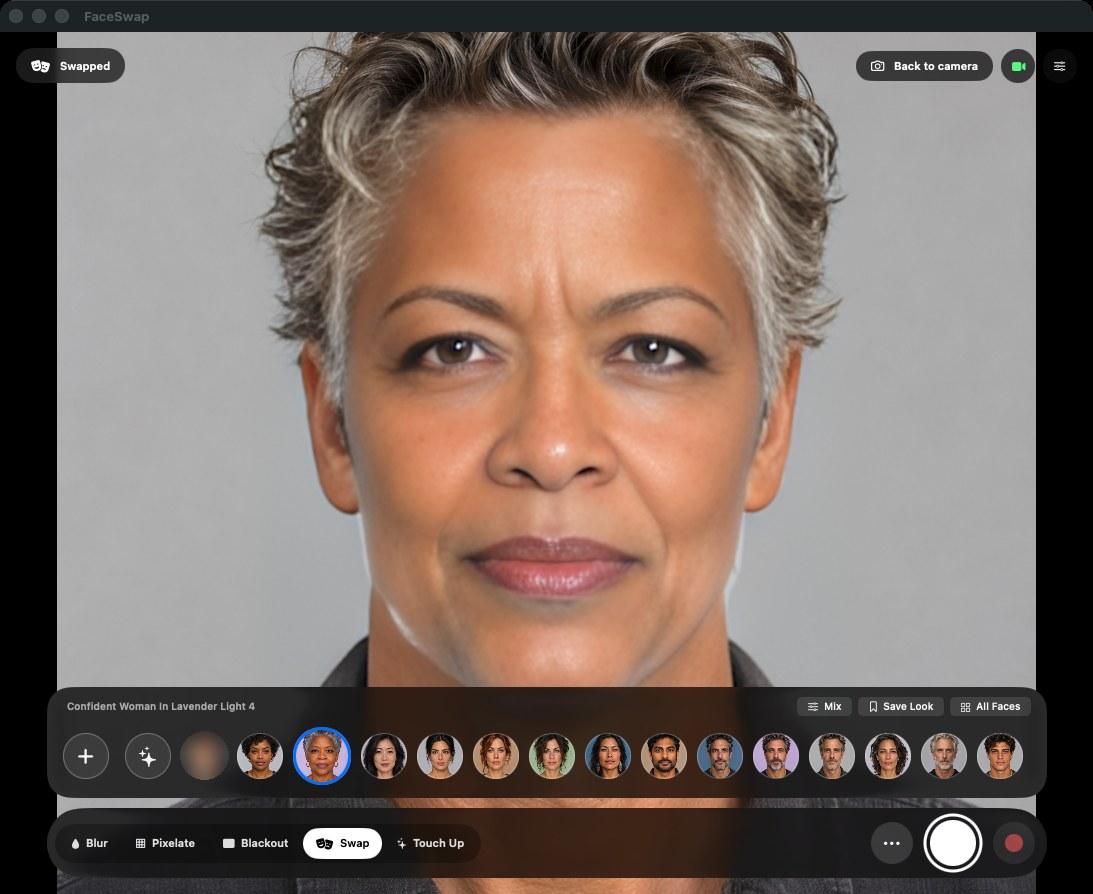
Swap follows InsightFace's pipeline step for step. A detector called SCRFD finds each face and five points on it: the eyes, the tip of the nose and the corners of the mouth. Those points line the face up against the template the swap model expects, the model swaps a 128 × 128 square, and the result goes back into the picture through the inverse of that alignment with a soft-edged mask. I converted all of the models from ONNX to Core ML with a couple of Python scripts that check the converted model against the original and print the difference, because I didn't trust either side otherwise.
On my M4 Pro detection takes about 13 milliseconds and the swap about 50 per face, so one face runs at about 20 frames a second. Detection and swapping run on separate queues, and if a new frame arrives while an older one is still waiting for the model, the newer one takes its place. A swap is never reused on a later frame. Every frame you see was swapped from that frame, so the face can't lag behind your head when you move.
Most of the time I spent on it was on jitter and not on speed. The app logs how far those five points move between frames as a percentage of the distance between your eyes, and that number at rest was the thing I kept trying to push down. The other thing I learned is that USB webcams are moody. Left alone they drift down to about 20 frames a second with uneven gaps, so the camera is locked to 720p at 30. In a dim room many of them halve their frame rate anyway to get a longer exposure, and no setting fixes that. Turning on a lamp does.
A shelf of faces
You can upload a photo of a face to wear, but most people won't have one handy, so the app comes with a gallery of portraits. Every one of them is generated. None of them is a real person. Click one to wear it, press 1 through 9 to switch, or roll the dice for a mix of two or three faces at random weights, a face that belongs to nobody.
The face gallery and Mix
1 / 3
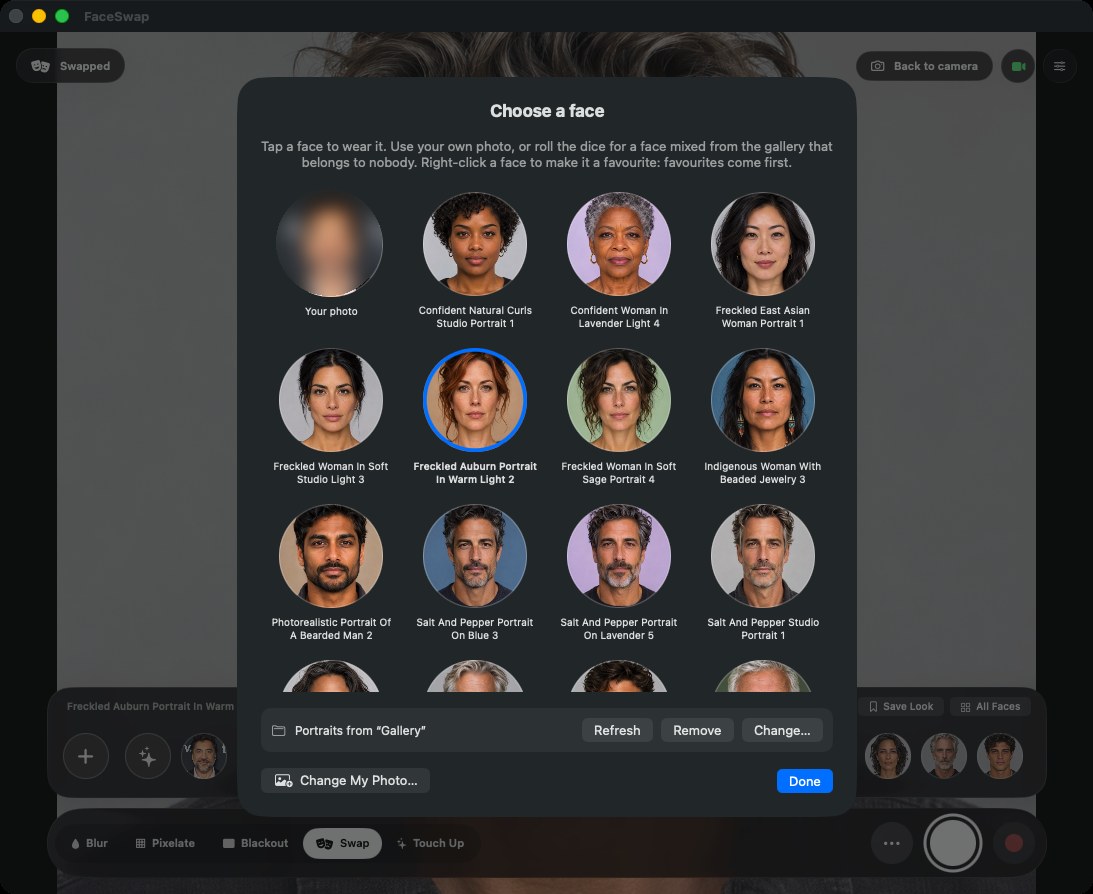
Mixing is cheap because of how the swap model works. It doesn't take a picture of the new face, it takes a list of 512 numbers that describes who someone is, made by a separate model from their photo. Blending two faces is just a weighted average of two of those lists before the model sees them, so it costs nothing per frame. Set Strength below 100% and some of your own face comes through too.
I tried to make people older and younger the same way. My guess was that there'd be one direction in that list of numbers that means "older," and I could slide anyone along it. There isn't, at least not one that works for everybody, because the shifts only loosely agree between faces. What did work was aging the portrait itself once with a much bigger model, StyleGANEX, which takes about five seconds a picture, and then adding the older and younger copies to the gallery as ordinary faces.
FaceSwap Camera
The part that makes it useful in a call is a CoreMediaIO camera extension. macOS only installs those from an app in the Applications folder, and you approve it once in System Settings. After that, every app that can pick a camera sees FaceSwap Camera in its list, and it doesn't need a plug-in for any of them.
Close the window and FaceSwap keeps running in the menu bar, still feeding the camera. While a call app is using it, a small on-air window shows exactly what the call sees, with buttons to black out or put up a "Back in 5" card. That window is kept out of screen sharing and Presenter Mode, so it never ends up in the call itself.
There's an optional "Altered" label you can put on any swapped picture, so you can use a swap openly. Some places it's a joke and some places people should know.
Borrowing a face from the call
This is the silliest thing in the app. Open the ••• menu, choose Borrow a Face From a Call, and macOS's own window picker opens. FaceSwap takes one picture of the window you pick, never a recording, and offers you every face in it. Click one and a moment later you're wearing your colleague's face in the same meeting.
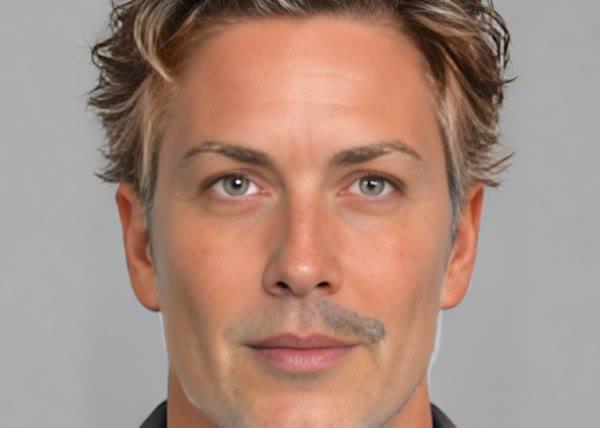
Because that's someone else's face, it has more rules than the rest of the app. The screenshot is thrown away as soon as the faces are read out of it. A borrowed face can't be saved to the gallery or kept as a look, and it's gone when you pick another face or quit. And while you're wearing it, your picture always carries the "Altered" label, whatever your settings say. Ask them first.
The rest of a call
Once the camera pipeline existed, a lot of small things were easy to hang off it. Quick cards put a message into your picture, like "Lost my audio" or "Back in 5" with a real countdown. Follow Me crops and pans to keep you centered when you lean back. Presenter Mode turns a window into your picture with you cut out in front of it, which works in any meeting app because the meeting app just thinks it's a camera. A thumbs-up sends thumbs floating up the picture.
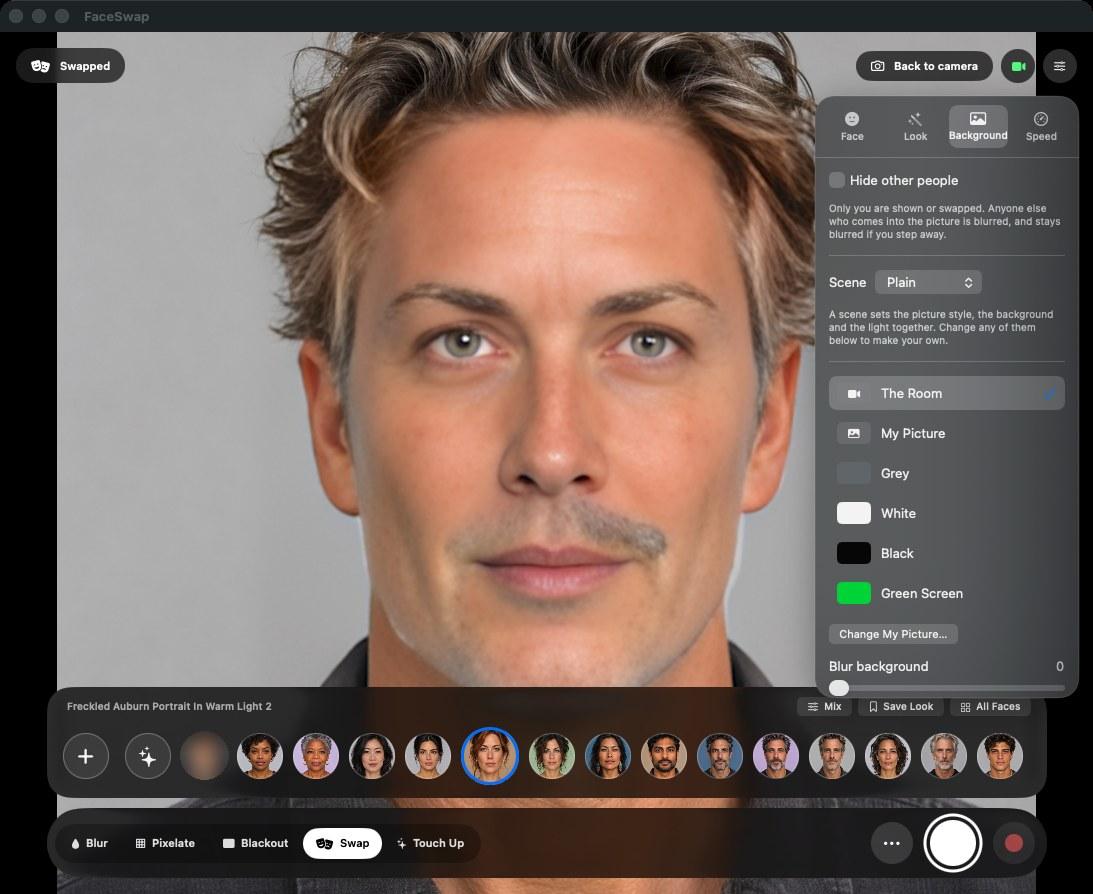
Hide Other People blurs anyone who walks into the frame behind you and swaps only the person at the camera. Clips record up to 30 seconds with the faces already hidden or swapped, with sound. This week I added Keep Last 30 Seconds, which holds the last half minute of what the call sees so you can save something funny after it happened, and a Reveal key that fades the swapped face away over a second and a bit to show it was you all along. That one only happens when you press the key. I didn't want a timer anywhere near it.
The models problem
The download on GitHub is about 28 MB, and it doesn't include Swap. That's the honest catch with this project. The detector, the identity model and the swap model all come from InsightFace, and their weights are licensed for non-commercial research only. GFPGAN and the other face-detail models have their own terms. I can run them on my own Mac, but I can't put them in a public download, and I'm not going to pretend otherwise.
So the app is built in two halves. Blur, Pixelate, Blackout, lighting, backgrounds and every call tool are in the public build and work straight away. Swap and the face touch-ups are optional components the app installs from a catalogue: each model is a versioned, compressed pack with its size and hash, the catalogue can be signed, every download is checked against hashes the app already carries, and a model that fails to load leaves the working one in place. It resumes cut-off downloads and keeps going on the iPhone after you leave the app. A lot of that was written this week, for a catalogue that has no public address yet, because the rights question has to be settled first. I'd rather the plumbing be right before anyone depends on it.
How it's built
It's Swift and SwiftUI all the way down, one codebase for the Mac, iPad and iPhone, with the Xcode project generated from a YAML file. The camera extension is its own target and has to have its build number bumped whenever it changes, or macOS keeps running the old one. Clips and the 30-second replay use AVFoundation, with the microphone in its own capture session put on the camera's clock so the sound stays in step without ever reconfiguring the camera. Borrowing uses ScreenCaptureKit's window picker. The Python side only exists to convert models and build the gallery.
It's been six days and 114 commits. Version 1.0 went up on GitHub on Thursday, along with the site and a full guide at macfaceswap.com.
Trying it
You need a Mac with Apple silicon on macOS 14 Sonoma or later. Download the latest release as a DMG, ZIP or installer package; it's signed and notarized, so it opens like any other Mac app. Move it to Applications, click Install FaceSwap Camera, approve it in System Settings, and pick FaceSwap Camera in your call app. The guide covers every control and the shortcuts, and why your camera might drop to 15 frames a second in the evening.